
Connect your Veepee store — formerly Vente-Privée — to AtomicSeller to centralize order retrieval, fulfillment, and, when included in your workflow, the return of shipping information.
Before you start #
- Your Veepee seller account must be active.
- You need the user name and secret issued for the integration.
- Identify the MerchantKey and, when required, the WMS key to use.
- Identify the Veepee operation or operations whose orders must be retrieved.
- Have a technical email address ready for notifications.
The Veepee secret is confidential: keep it in a secure password manager and mask it in every screenshot or support request.
Add the Veepee connector #
- In AtomicSeller, open Stores.
- Choose the action to add a store.
- Select Veepee from the connector list.
- Open Main settings and complete the fields described below.
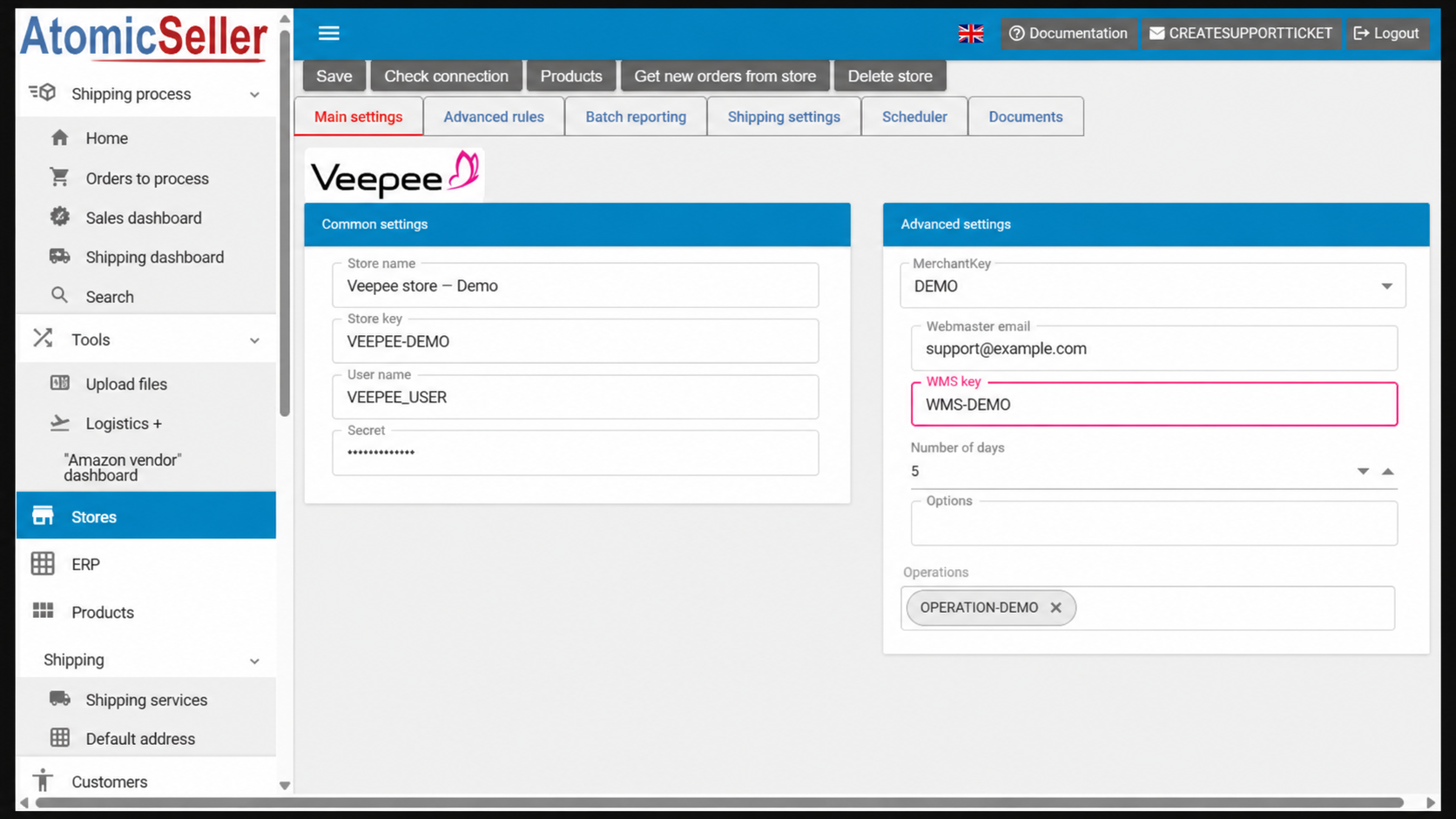
Complete the main settings #
| Field | Expected value |
|---|---|
| Store name | A clear label, for example “Veepee France”. |
| Store key | A unique, stable internal identifier without spaces. |
| User name | The identifier issued for the Veepee connection. |
| Secret | The secret associated with the user name. Never expose it in a screenshot or unsecured support ticket. |
| MerchantKey | The merchant entity linked to the store. |
| Webmaster email | The technical address that receives notifications. |
| WMS key | The relevant warehouse when WMS management is enabled. |
| Number of days | The retrieval window used during synchronization. A higher value extends the period checked. |
| Options | Leave this field empty unless AtomicSeller support gives you a specific instruction. |
| Operations | Select one or more authorized Veepee operations. Each selection appears as a separate chip in the field. |
Manage Veepee operations #
The Operations field filters the orders retrieved by the connector. Click Save after every change.
| Need | Action |
|---|---|
| Retrieve one operation | Select the relevant operation from the list. |
| Retrieve several operations | Select them one after another; each appears as a separate chip. |
| Replace a completed operation | Remove its chip with the cross, then select the new operation. |
| No operation is listed | Save the credentials, check the connection, and verify that the Veepee account can access the expected operations. |
Do not assume that an empty field means “all operations”. In a standard setup, explicitly select at least one operation or ask AtomicSeller support to confirm the expected behavior.
Configure the scheduler #
In the Scheduler tab, enable only the flows included in your project. To start with order retrieval only, enable Enable orders sync and keep outbound flows disabled until they have been validated.
| Option | Purpose |
|---|---|
| Enable orders sync | Automatically retrieves Veepee orders. |
| Enable parcel tracking update | Sends tracking numbers back when this flow is planned and tested. |
| Enable order status update | Sends status changes back when this flow is planned and tested. |
| Update product catalog enabled | Enables catalog synchronization only when it is in scope. |
| Enable stock update | Enables stock updates only when AtomicSeller is expected to manage them. |
Review shipping settings #
If AtomicSeller must send the carrier, service, or tracking information back to Veepee, review the Shipping settings tab. Each mapping links an AtomicSeller shipping-service key to the expected product code. Do not change an existing mapping without checking its impact on orders currently being shipped.
Save, test, and retrieve orders #
- Click Save.
- Click Check connection.
- If the test succeeds, click Get new orders from store.
- Verify that an eligible order from the selected operation appears in the processing list.
Expected result #
The Veepee store appears in AtomicSeller, the connection is validated, and orders matching the selected operations can be retrieved manually or by the scheduler.
Troubleshooting #
Authentication fails. Check the user name and secret, remove accidental spaces introduced during copy and paste, and confirm that the Veepee credentials are active.
No orders are retrieved. Check the selected operation, the Number of days value, the order status in Veepee, and Enable orders sync. Then run a manual retrieval.
The expected operation is not listed. Check the Veepee account permissions, save the credentials, and run the connection test again before reviewing the list.
The wrong entity or warehouse is used. Review the selected MerchantKey and WMS key before testing again.
Tracking or status is not sent back. Check that the relevant scheduler flow is enabled and that the shipping mappings are complete.