
This procedure explains how to let AtomicSeller retrieve orders from a PrestaShop store and send shipment information back.
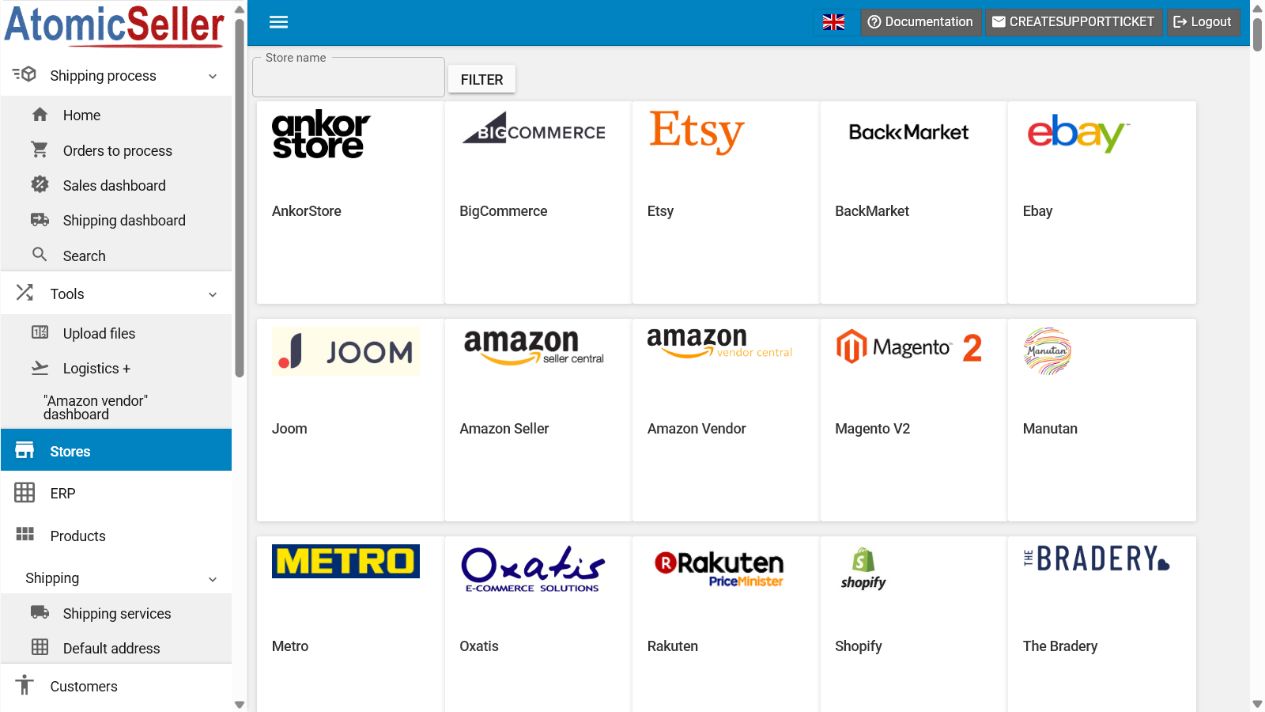
Before you begin #
- You have administrator rights in PrestaShop and permission to manage stores in AtomicSeller.
- The store is reachable from the Internet through a valid HTTPS address.
- You can create a webservice key dedicated to AtomicSeller.
- You know how many days of orders should be retrieved during the initial synchronization.
Create the webservice access in PrestaShop #
- In the PrestaShop back office, open Advanced Parameters > Webservice.
- Enable the webservice if it is disabled.
- Select Add new webservice key, generate a key, and give it a clear description such as AtomicSeller.
- Enable the key and grant only the permissions required for orders, products, carriers, and tracking. Do not grant every permission by default.
- In multistore mode, associate the key with the relevant store.
- Copy the key to a password manager. Never include it in a screenshot or support ticket.
Configure the store in AtomicSeller #

- In AtomicSeller, open Stores, select Add a store, then select PrestaShop.
- Open the Main settings tab.
- Enter a readable name in Store name and a short unique identifier in Store key.
- In Store API URL, enter the store root address without appending
/api. - Paste the webservice key into Prestashop API token.
- Complete the administration and invoice fields only if your configuration uses them. Prefer a technical account over a personal password.
- Set the Number of days to retrieve during the first synchronization.
- Select Save, then Check connection.
- When the test succeeds, select Get new orders from store and review the result under Orders to process.
Expected result. AtomicSeller confirms the connection and retrieves the PrestaShop orders that match the configured period and statuses.
Troubleshooting #
401 or 403 error. Check that the key is enabled, associated with the correct store, and allowed to access the required resources. Some servers must also be configured to forward the Authorization header.
404 error. Check the root address entered in AtomicSeller and confirm that https://your-store.example/api/ responds on the PrestaShop side.
Certificate error or timeout. Check the HTTPS certificate, firewall, and security rules that might block AtomicSeller.
No orders are retrieved. Check the number of days, eligible statuses, and the presence of recent orders in PrestaShop.
Official reference #
Create access to the PrestaShop webservice