
Configure your Lettre suivie account in AtomicSeller: connection details, label settings and default sender.
1. Open the shipping service #
Open Shipping > Shipping services, then double-click the Lettre suivie service you want to configure. Have the account details supplied for your contract ready.
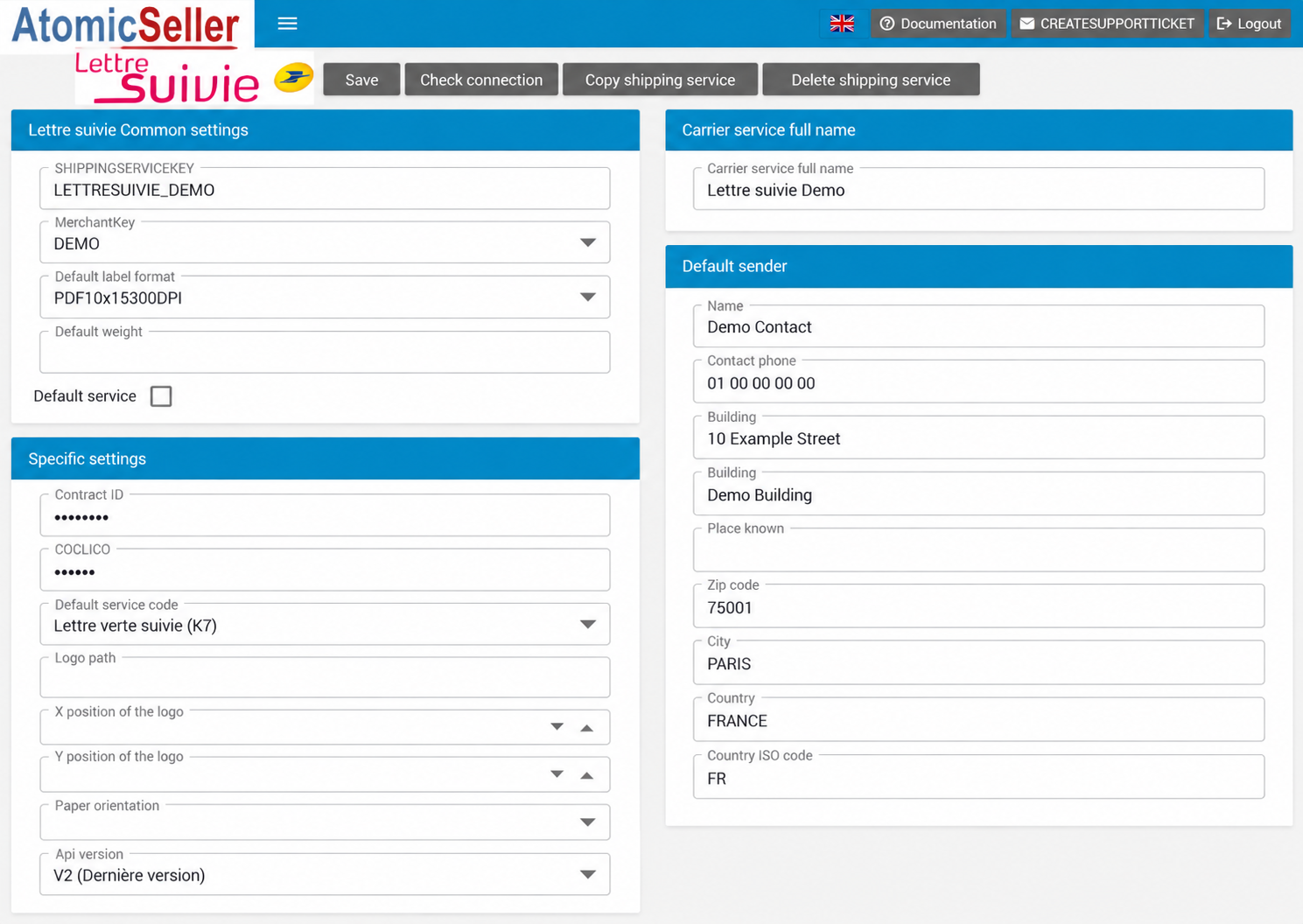
2. Identify the service #
| Field | What to enter |
|---|---|
| SHIPPINGSERVICEKEY | The code identifying this service in AtomicSeller, for example LETTRESUIVIE_DEMO. Keep an existing service code until its use in your integrations has been checked. |
| MerchantKey | Select the relevant merchant in your account. This list depends on your merchants; Demo names in the illustration are examples. |
| Carrier service full name | A name that helps you recognise the service, for example Lettre suivie Demo. |
3. Enter the account details #
| Field | What to enter |
|---|---|
| Contract ID | Your Lettre suivie contract ID. Its contents are masked in the observed form. |
| COCLICO | The COCLICO identifier associated with your La Poste account. |
| Api version | The interface lists V1 (Abandonnée — discontinued) and V2 (Dernière version — latest version). Use V2 for the current configuration; have any existing V1 setup reviewed before changing it. |
4. Choose the label and service settings #
| Field | What to enter |
|---|---|
| Default label format | Select a format compatible with your printer and carrier connection. The displayed choices are listed below. |
| Default service code | Select the service appropriate for your shipments and contract. A service appearing in the list is not necessarily enabled on your account. |
| Default weight | Default weight. Confirm the unit and when your configuration uses this value before entering it. |
| Default service | Select this checkbox if the service should be designated as the default in your configuration. |
Label formats #
PDF10x15300DPI identifies a 10 × 15 cm PDF at 300 dpi, intended for dedicated self-adhesive label printers. PDFA4300dpi is the A4 PDF option. Other displayed formats (ZPL and DPL) are intended for compatible professional printing workflows. Confirm the format supported by your carrier connection before changing an existing setting.
Additional settings #
| Field | What to enter |
|---|---|
| Logo path | Location of the logo to use. Confirm a path accessible to AtomicSeller before entering it. |
| X position of the logo / Y position of the logo | Logo position settings. Use coordinates appropriate for your label template and check the printed result. |
| Paper orientation | Portrait for vertical orientation; Landscape for horizontal orientation. A blank option is also available. |
Available dropdown choices #
The following labels are reproduced exactly as displayed in the application, including French product names. A blank entry is shown as “(blank)”; its effect depends on the field.
Default label format #
- PDFA4300dpi
- PDF10x15300DPI
- ZPL10x15203dpi
- ZPL10x15300dpi
- ZPL10x10203dpi
- ZPL10x10300dpi
- DPL10x15300dpi
- DPL10x15203dpi
- DPL10x10203dpi
- DPL10x10300dpi
Default service code #
- (blank)
- 2L (2L)
- Lettre verte suivie (K7)
- Lettre performance suivie (K8)
Paper orientation #
- (blank)
- Portrait
- Landscape
Api version #
- V1 (Abandonnée)
- V2 (Dernière version)
5. Complete the default sender #
Enter the default sender under Default sender. These details are intended for use when no sender is provided in the order or through the API.
| Field | What to enter |
|---|---|
| Name | Sender or contact name. |
| Contact phone | Sender contact phone number. |
| Building (premier / first) | First address line. In the observed screen, this contains the street number and street name. |
| Building (second) | Additional address details; both fields have the same label in the interface. |
| Place known | Locality or additional location details, if needed. |
| Zip code / City | Postal code and city. |
| Country / Country ISO code | Country and two-letter code, for example FRANCE and FR. |
6. Save and check the connection #
Use Save to save the settings and Check connection to run the available connection check. If an error appears, review the account credentials and selected service, then contact AtomicSeller support with the exact error message if needed. Do not include passwords or secret keys.