
Configure your UPS account in AtomicSeller: connection, shipper account number, service, notifications, label format and default sender.
1. Open the settings #
Open Shipping services, then double-click your UPS service. Have your carrier account details ready. The Demo values below are fictional and must not be copied into your account.
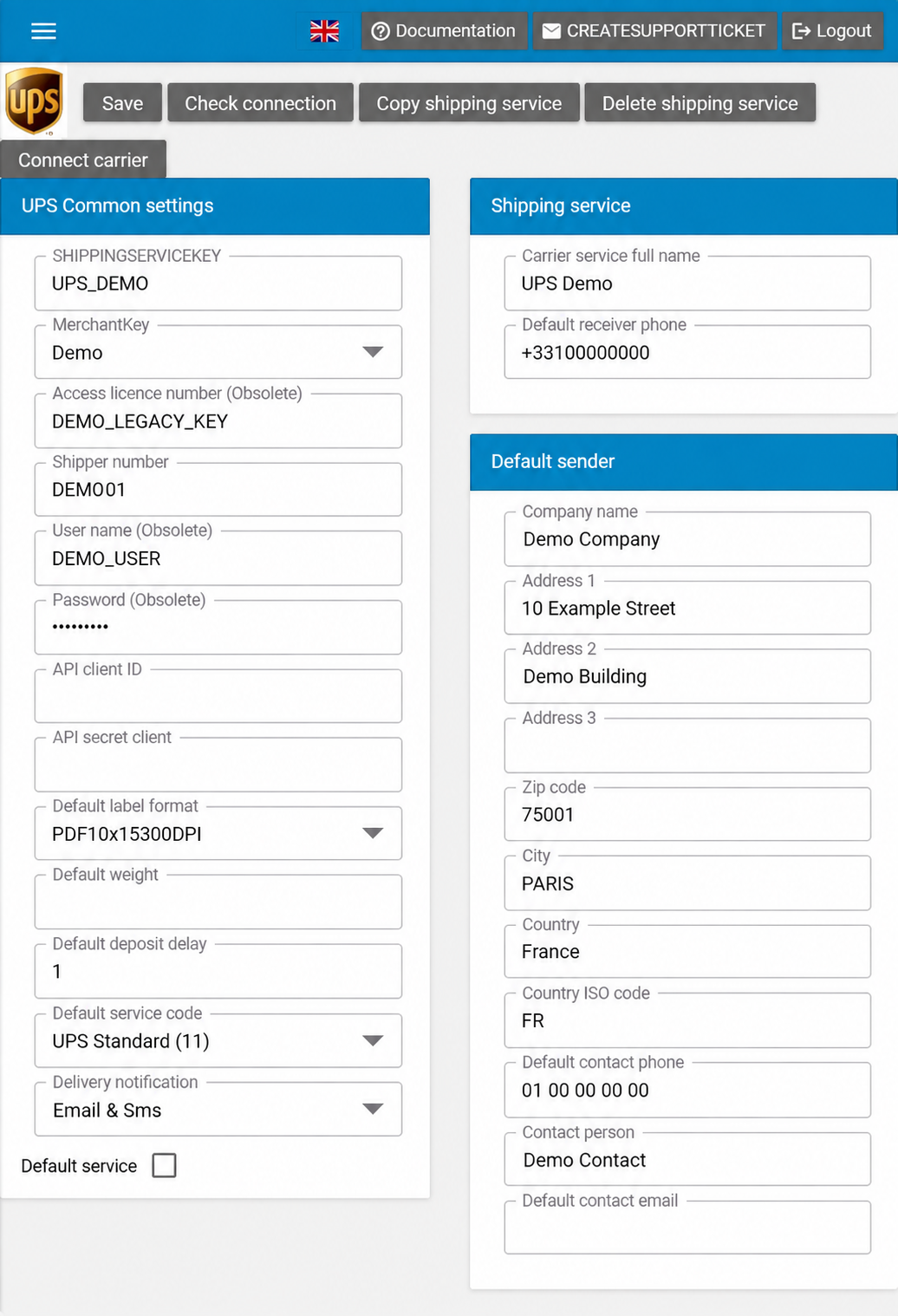
Screenshot edited to anonymise account data. Values and empty fields are examples, not configuration recommendations.
2. Enter your UPS account details #
The form distinguishes API fields from three legacy fields explicitly marked Obsolete. For a new connection, use the procedure agreed for your account with AtomicSeller support; do not use the obsolete fields as a setup template.
| Field | What to enter |
|---|---|
| SHIPPINGSERVICEKEY | Code identifying this service in AtomicSeller. Check its mappings in your orders and integrations before changing an existing code. |
| MerchantKey | Merchant associated with the service. The list depends on the merchants in your account. |
| Carrier service full name | Name used to recognise this service within your organisation. |
| Shipper number | UPS shipper account number. Enter the exact value associated with your contract. |
| API client ID | API client identifier intended for your UPS connection. Enter it according to the connection procedure confirmed for your account. |
| API secret client | Secret associated with the API client. Keep it confidential and do not include it in a support ticket. |
| Access licence number (Obsolete) | Legacy access licence number, marked obsolete in the application. Do not confuse it with the Shipper number or API client ID. |
| User name (Obsolete) / Password (Obsolete) | Legacy username and password, marked obsolete. Do not change these values on an existing account without checking which connection procedure it uses. |
Connect carrier #
The form includes a Connect carrier button for connecting to the carrier. Use it as part of the UPS connection procedure confirmed for your account and follow the steps displayed. It is separate from Save, which saves settings, and Check connection, which runs the check provided by the application.
3. Set the service and notifications #
| Field | What to enter |
|---|---|
| Default label format | Format suited to your printer and supported by your UPS connection. |
| Default weight | Default weight. Confirm its unit and when it applies before entering a value. |
| Default deposit delay | Default deposit delay. Use the value confirmed for your workflow; the label does not specify its unit. |
| Default service code | Default UPS service. Choose a service available for your contract, origin and destination. |
| Delivery notification | Selected notification mode: blank, Email, Sms or Email & Sms. Enter the recipient’s corresponding contact details in the order and check support for this option with your UPS service. |
| Default receiver phone | Default recipient phone number. Use a value appropriate for your workflow and confirm when this fallback is used; prefer the recipient’s actual number in the order. |
| Default service | Select this checkbox if this service should be the default in your configuration. |
Default service code #
Exact list displayed in AtomicSeller. “(blank)” means an empty entry. Some UPS Today entries combine several names in their displayed label and are reproduced unchanged. Inclusion in this list does not guarantee service availability for your contract or route.
- (blank)
- Next Day Air (01)
- 2nd Day Air (02)
- Ground (03)
- Express (07)
- Expedited (08)
- UPS Standard (11)
- 3 Day Select (12)
- Next Day Air Saver (13)
- UPS Next Day Air® Early (14)
- UPS Worldwide Economy DDU (17)
- Express Plus (54)
- 2nd Day Air A.M. (59)
- UPS Saver (65)
- First Class Mail (M2)
- Priority Mail (M3)
- Expedited MaiI Innovations (M4)
- Priority Mail Innovations (M5)
- Economy Mail Innovations (M6)
- MaiI Innovations (MI) Returns (M7)
- UPS Access Point™ Economy (70)
- UPS Worldwide Express Freight Midday (71)
- UPS Worldwide Economy (72)
- UPS Express®12:00 (74)
- UPS Today Standard 83 = UPS Today Dedicated Courier (82)
- UPS Today Intercity 85 = UPS Today Express 86 = UPS Today Express Saver (84)
- UPS Worldwide Express Freight (96)
Delivery notification #
- (blank)
- Sms
- Email & Sms
A blank value selects no mode in this field. Email & Sms selects both channels.
Default label format #
- PDFA4300dpi
- PDF10x15300DPI
- ZPL10x15203dpi
- ZPL10x15300dpi
- ZPL10x10203dpi
- ZPL10x10300dpi
- DPL10x15300dpi
- DPL10x15203dpi
- DPL10x10203dpi
- DPL10x10300dpi
PDF10x15300DPI: a 10 × 15 cm PDF label at 300 dpi, suited to professionals using a printer for self-adhesive labels.
PDFA4300dpi: an A4 PDF suited to printing on A4 sheets, particularly for individuals or beginners.
The other choices serve more specific professional needs. ZPL and DPL require compatible equipment or a compatible printing workflow. Also check that your carrier connection supports the format.
MerchantKey #
The list depends on the merchants in your account. Select the relevant merchant; names from the account used for the screenshot are not reproduced here.
4. Complete the default sender #
Enter the default sender’s details in Default sender. They will be used when no sender is provided in the order or through the API.
| Field | What to enter |
|---|---|
| Company name | Sender’s company. |
| Address 1 | Street number and name. |
| Address 2 / Address 3 | Additional address details, if needed. |
| Zip code / City | Postal code and city. |
| Country / Country ISO code | Country and two-letter country code, for example France and FR. |
| Default contact phone | Sender contact’s phone number. |
| Contact person | Sender contact’s name. |
| Default contact email | Sender contact’s email address. |
5. Save and check the connection #
Click Save to save the settings, then Check connection to run the check provided by the application. If an error occurs, check the credentials, identifiers and service code. If needed, send the exact error message to AtomicSeller support without including passwords or access keys.