Before you begin #
The DHL account used for outbound shipping labels may not be enabled to create return labels. DHL return labels must be generated with a dedicated return-enabled account.
Generate the return label #
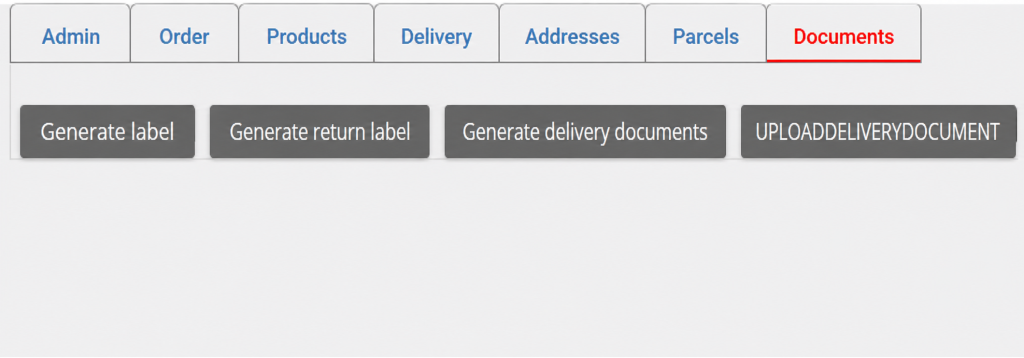
- Open the relevant order.
- Select the Documents tab.
- Click Generate return label.
- Download the generated label.
Important: AtomicSeller manages the return shipment addresses internally. Do not switch the sender and recipient addresses manually.

Common errors #
DHL error 8009 when the selected account is not enabled for returns #
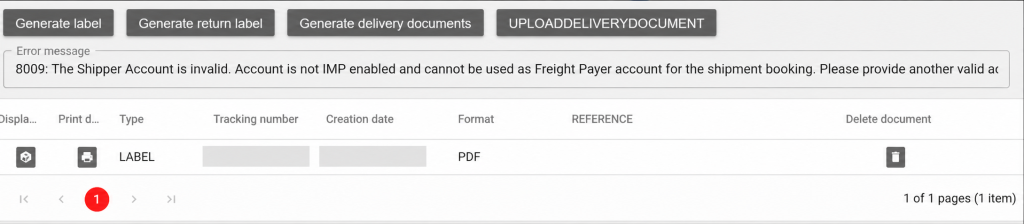
You may receive error 8009 stating that the shipper account is invalid and is not IMP enabled.
What it means: The selected DHL account is dedicated to outbound labels and cannot be used to pay for or book this return shipment.
How to resolve it #
- Open the Delivery tab for the order.
- In Shipping service, select the DHL account dedicated to return shipments.
- Open the Documents tab again.
- Click Generate return label, then download the label.
If no return account is available in Shipping service, ask your administrator to configure the return-enabled DHL account in AtomicSeller.
Select the return account #
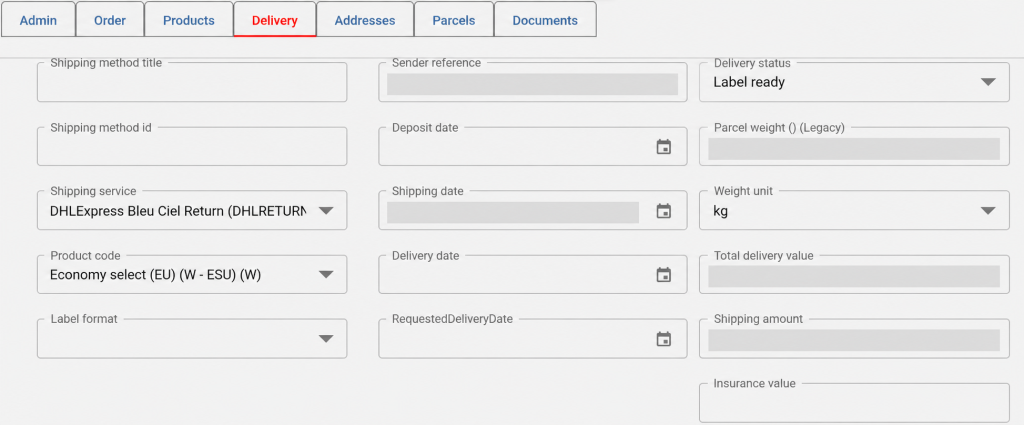
In Delivery tab, select the DHL return account in Shipping service. Don’t forget to click on “save” button.
Errors 998/999: parcel contents are incomplete #
DHL may report that the Commodities information is incomplete. This means that the products contained in the parcel must be described for the shipment within the EU. This is not specific to return labels.

A general Goods description is required for parcels within the EU.
Individual product details, prices and HS codes are not required.
Click on the the return parcel, enter the description and click Save.
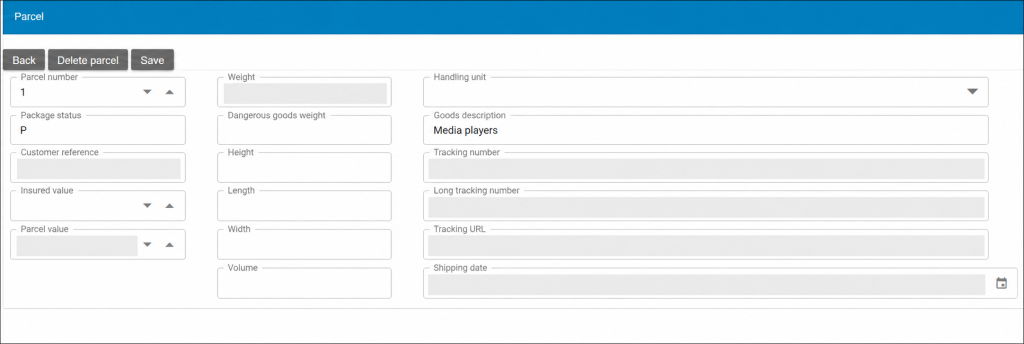
Here we entered “Media players”
This is enough within the Eu.
Then click on save button.
Then click back button.
On Documents tab and click Generate return label.