
Connect your Showroomprivé store to AtomicSeller to retrieve Mirakl orders, process them, and send shipping information back to the marketplace.
Before you start #
- Your Showroomprivé seller account must be active.
- Obtain the Mirakl instance URL and the shop API key.
- Identify the MerchantKey to use when several entities are configured in AtomicSeller.
- If order retrieval must be limited to specific sales, prepare their campaign identifiers.
An API key is a secret. Store it securely and mask it in every screenshot.
Add the Showroomprivé connector #
- In AtomicSeller, open Stores.
- Choose the action to add a store.
- Select Showroomprive from the connector list.
- Open the Main settings tab.
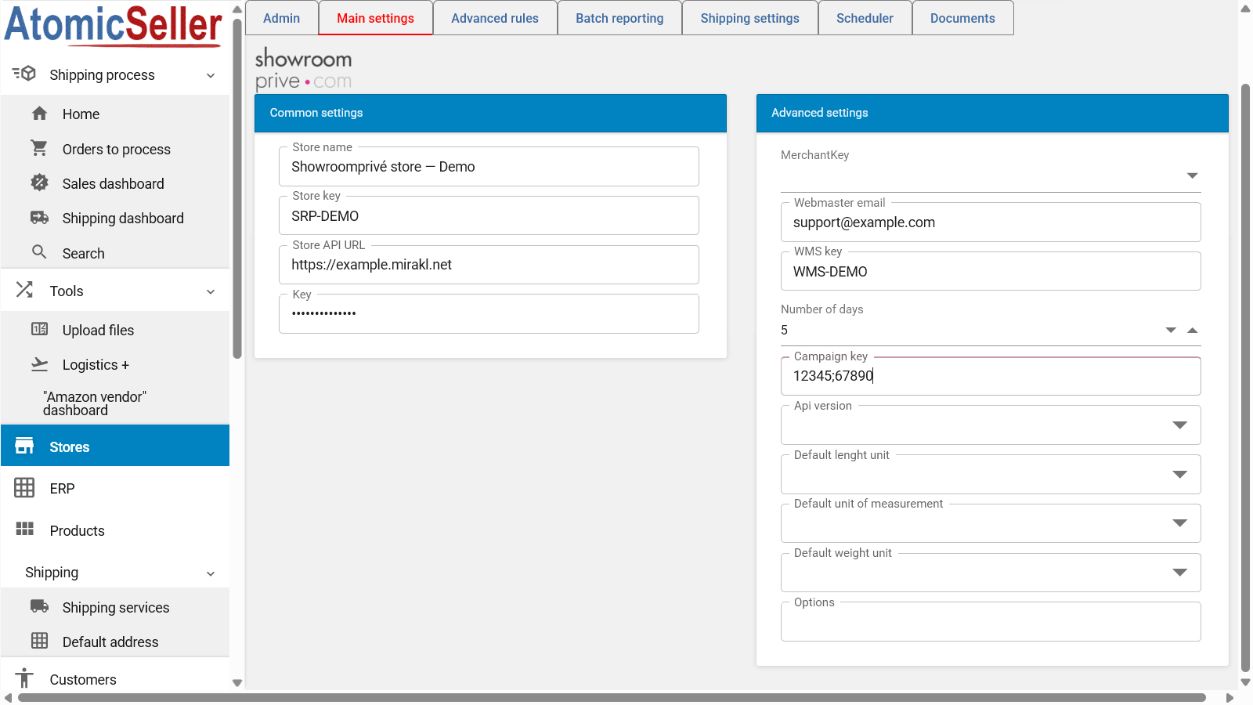
Complete the settings #
| Field | Expected value |
|---|---|
| Store name | A clear label, for example “Showroomprivé France”. |
| Store key | A unique, stable internal identifier without spaces. |
| Store API URL | The HTTPS URL of your Showroomprivé Mirakl instance, without an added API route. |
| Key | The Mirakl shop API key. |
| MerchantKey | The merchant entity associated with the store. |
| Webmaster email | The technical address that receives notifications. |
| WMS key | The relevant warehouse when WMS management is enabled. |
| Number of days | The order retrieval window. |
| Campaign key | One or more campaign identifiers separated by a semicolon, for example 12345;67890. Leave blank to avoid filtering by campaign. |
| API version and units | Keep the recommended default values unless AtomicSeller instructs you otherwise. |
| Options | Leave empty unless AtomicSeller support gives you a specific instruction. |
Manage Showroomprivé campaigns #
In the Main settings tab, the Campaign key field controls which campaigns are eligible for order retrieval. Select Save after every change.
| Requirement | Value to enter |
|---|---|
| Retrieve one campaign | Enter its identifier, for example 12345. |
| Add a second campaign | Keep the first identifier and append the next one after a semicolon, without spaces: 12345;67890. |
| Stop one campaign and start another | Remove the stopped identifier and replace it with the new one. Keep any other campaign that is still active. |
| Retrieve every campaign | Leave the field blank so that no campaign filter is applied. |
The same format applies to three or more campaigns: always separate the identifiers with semicolons, for example 12345;67890;24680.
Save, test, and retrieve orders #
- Click Save.
- Click Check connection.
- If the test succeeds, click Get new orders from store.
- Confirm that an eligible order appears in the processing list.
Expected result #
The Showroomprivé store appears in AtomicSeller, the Mirakl connection is validated, and orders matching the authorized campaigns can be retrieved.
Troubleshooting #
Authentication fails or access is denied. Check the HTTPS URL and API key, then confirm that the key belongs to the shop and still has the required permissions.
No orders are imported. Review the campaign identifiers, their semicolon-separated format without spaces, the Number of days value, and the order status in Mirakl.
A campaign changed. Replace obsolete identifiers with the current ones, or clear the field when every campaign should be accepted, then save.
An import was just started. Do not make repeated requests: when an order retrieval was started during the previous five minutes, AtomicSeller asks you to wait before trying again.
Official reference #
Mirakl seller API and authentication