Enter an order manually

This page is used to create, review, and prepare customer orders for warehouse processing and shipment. It is divided into several sections that capture the order information, shipping details, customer information, products, and parcel tracking.

Image
Image
Image

Header Actions #

ButtonDescription
Copy OrderCreates a duplicate of the current order, allowing you to quickly create a similar order without re-entering all information.
SaveSaves the current changes without sending the order to the warehouse.
Send for PreparationSends the order to the warehouse (WMS) so that picking, packing, and shipping preparation can begin. Ensure all mandatory information is completed before using this action.

Order Information #

The Order section contains the main information related to the sales order.

FieldDescription
Order KeyUnique identifier of the order.
Creation DateDate and time when the order was created.
Store KeyIdentifies the originating store or sales channel.
Order StatusDisplays the current processing status of the order (e.g., Processing).
Shipping DeadlineOptional deadline by which the shipment should be dispatched.
WMS TimestampDate and time when the Warehouse Management System processed the order.

Delivery Information #

This section defines how the order will be shipped.

FieldDescription
Shipping ServiceCarrier or shipping service used for delivery (e.g., GLS).
Product CodeShipping product or service level provided by the carrier.
Total Delivery ValueDeclared shipment value, if required by the carrier.
Weight UnitUnit of measurement used for shipment weight.
Insurance ValueDeclared insured value of the shipment.
IncotermInternational Commercial Term governing delivery responsibilities.
Delivery InstructionsAdditional instructions for the carrier or warehouse (special handling, access information, etc.).

Customer Information #

The Customer section contains the recipient’s contact details.

Contact Information #

FieldDescription
CompanyCustomer’s company name (optional).
First NameCustomer’s first name.
NameCustomer’s last name.
PhonePrimary telephone number.
Mobile PhoneMobile contact number.
EmailCustomer email address used for notifications.

Available Actions #

  • Search (Magnifier) – Search for an existing customer.
  • Save (Disk) – Save the current customer information.

Delivery Address #

This section specifies where the order will be delivered.

FieldDescription
Address 1Primary street address.
Address 2Additional address information.
Address 3Additional delivery details if required.
ZIP CodePostal code.
CityDelivery city.
Country CodeISO country code (e.g., FR).
Country NameCountry name.
Relay NumberPickup point or relay identifier, if applicable.

Documents #

The Documents section stores files related to the shipment.

Upload Delivery Document #

Use Upload Delivery Document to attach documents such as:

  • Delivery notes
  • Proof of delivery
  • Carrier documentation
  • Shipping labels (if applicable)

Uploaded documents appear in the list with:

  • Document type
  • Tracking number
  • Creation date
  • Format
  • Reference

Products #

The Products section lists every item included in the order.

Available Actions #

ButtonDescription
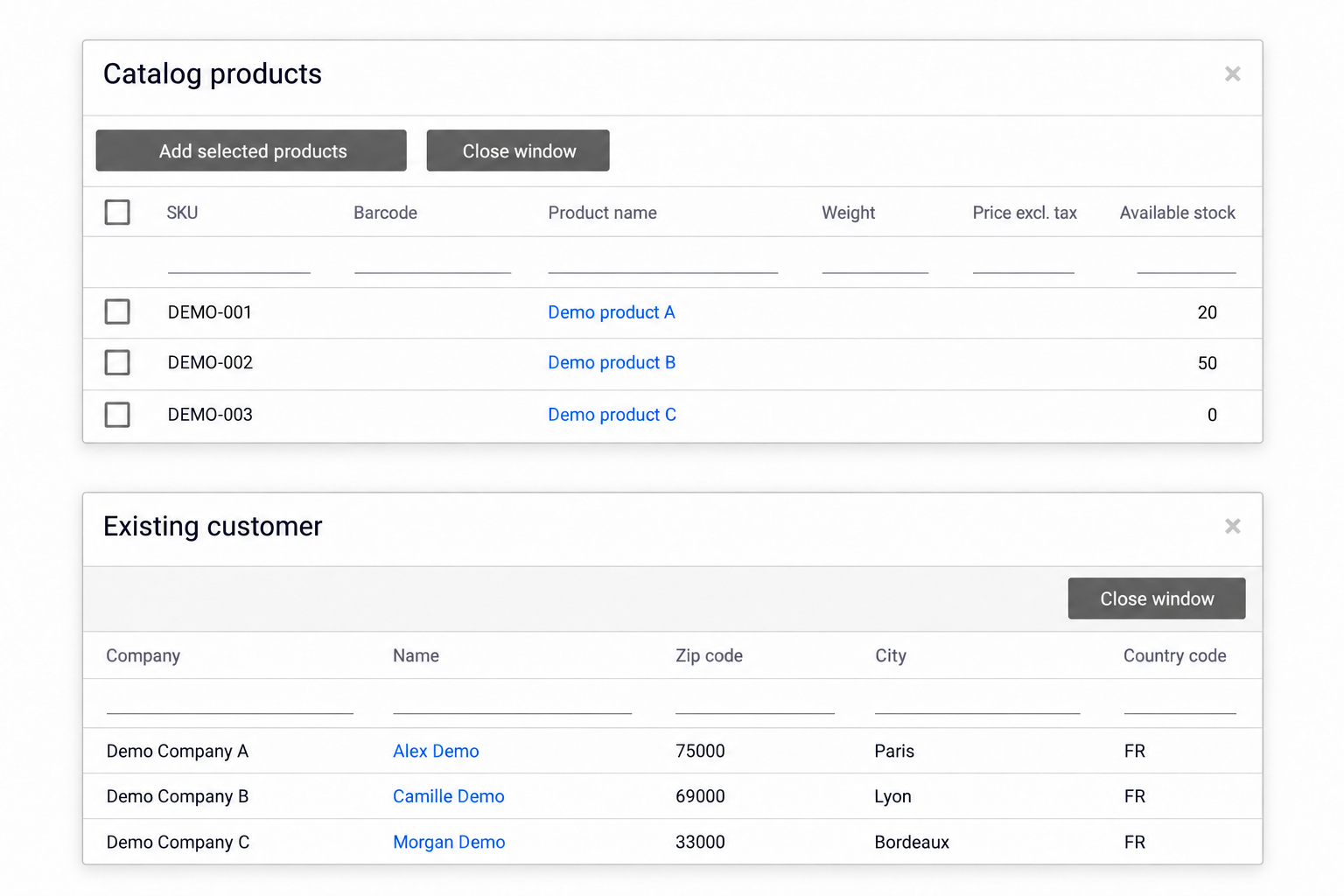
Pick ProductsSearch and add products to the order.
Add RowInsert a new empty product line.
Delete Selected RowRemove the selected product line from the order.

Product Information #

Each row displays:

ColumnDescription
SKUProduct identifier.
Product NameDescription of the product.
QuantityOrdered quantity.
EAN CodeProduct barcode.
WeightProduct weight.
Lot ReferenceBatch or lot number (when applicable).
Physical StockCurrent warehouse stock.
Available StockQuantity available for allocation.

Parcel Tracking #

The Parcel Tracking section becomes populated after the order has been prepared and shipped.

Typical information includes:

FieldDescription
Customer ReferenceCustomer reference associated with the shipment.
PackagePackage identifier.
WeightTotal parcel weight.
Tracking NumberCarrier tracking number used to monitor shipment progress.
Shipping DateDate and time when the shipment was dispatched.

If the order has not yet been shipped, these fields may remain empty or display default values.


Typical Order Workflow #

  1. Create or open an order.
  2. Verify the Order Information.
  3. Select the appropriate Shipping Service and shipping product.
  4. Enter or verify the customer’s contact details.
  5. Confirm the delivery address.
  6. Add the required products and quantities.
  7. Save the order.
  8. Click Send for Preparation to release the order to the warehouse.
  9. Once processed, monitor the Parcel Tracking section for shipment information.
  10. Upload any required delivery documents if necessary.

Notes #

  • Verify the delivery address before sending the order for preparation.
  • Ensure product quantities are correct to avoid warehouse picking errors.
  • Tracking information is only available after the warehouse has generated the shipment.
  • Orders should be saved before being sent for preparation.
  • Some fields (such as Insurance Value, Incoterm, or Relay Number) may only be required depending on the selected shipping service or business process.