
Pallet management groups Veepee parcels, sends the pallet closure request to Veepee and generates the pallet label.
Create a pallet #
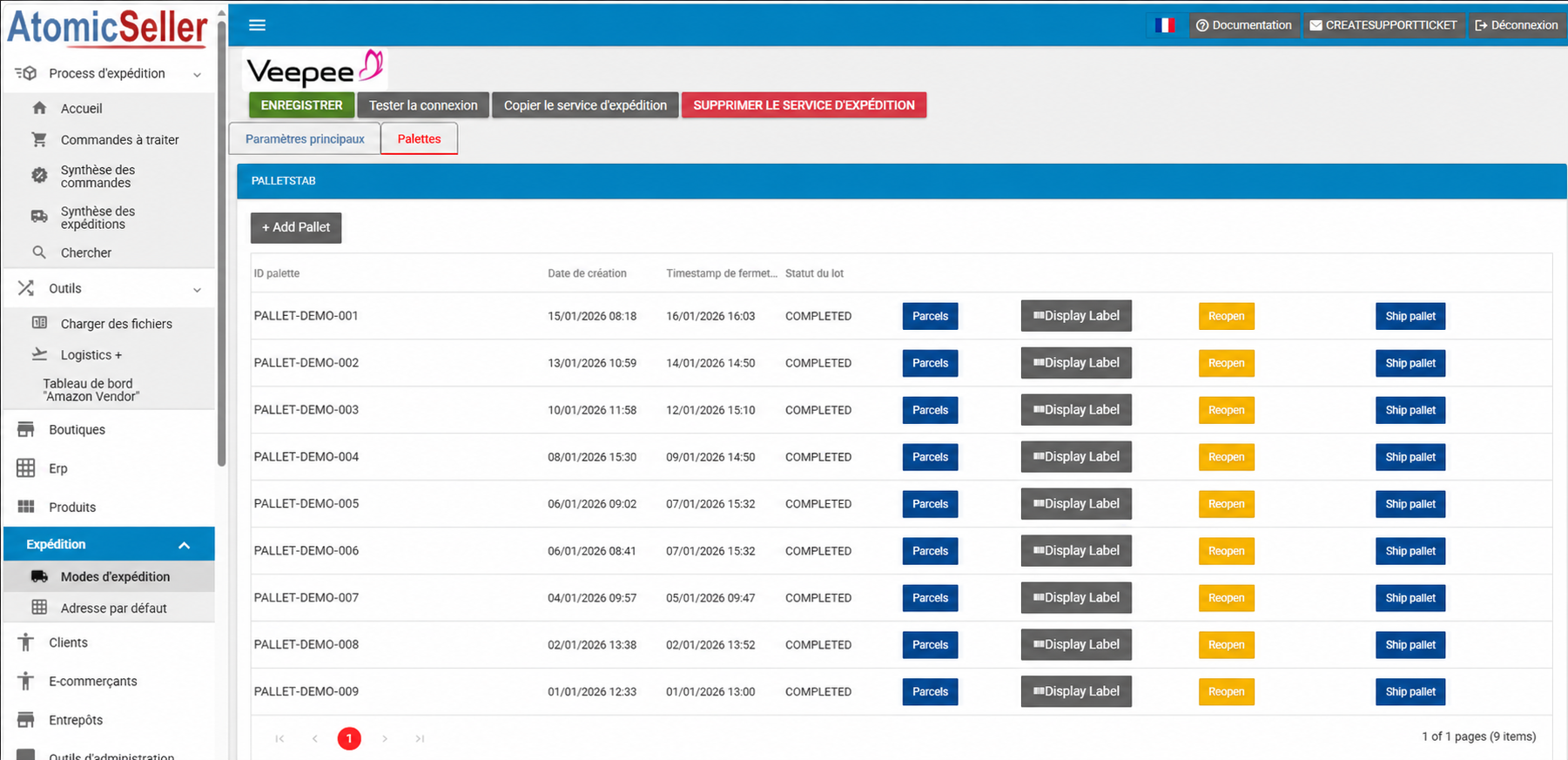
- Open the relevant Veepee shipping service.
- Select the Pallets tab.
- Click + Add Pallet. A pallet can also be created through the API using the CreatePallet operation.
Veepee generates the pallet identifier when the pallet is created.
Add parcels #
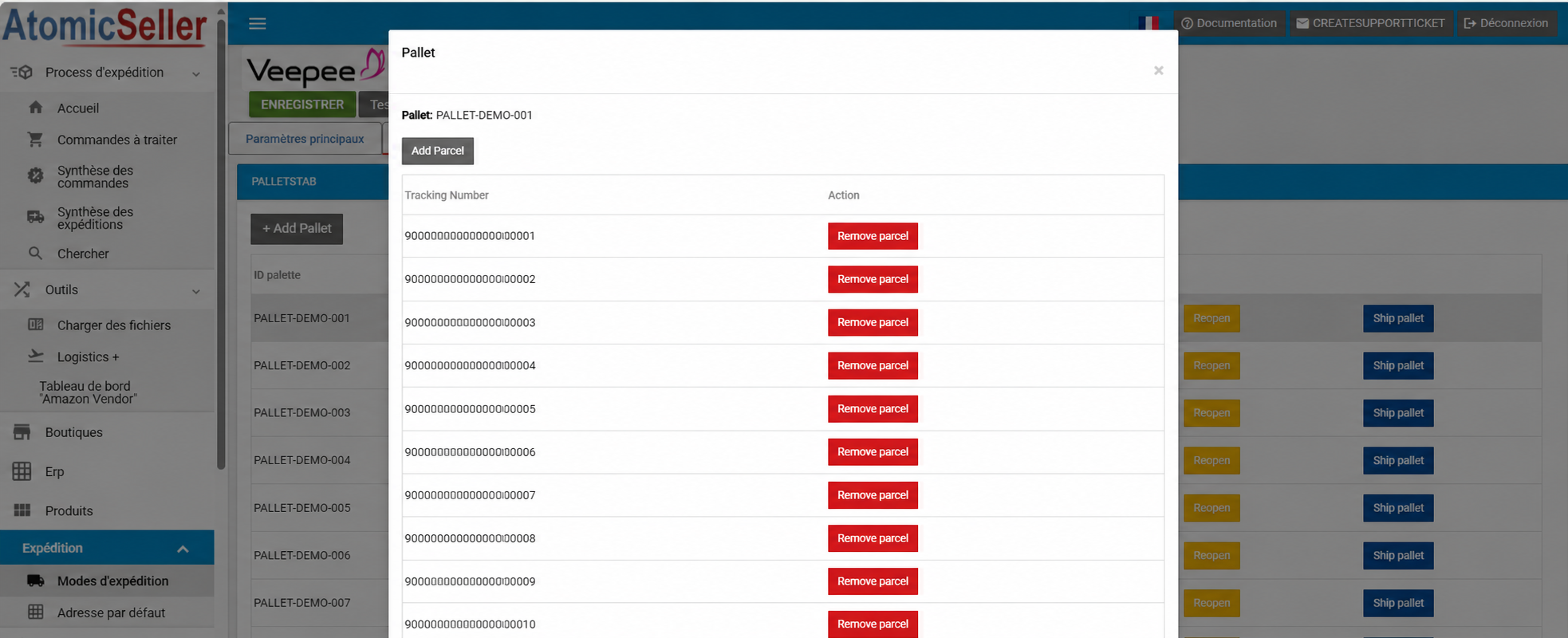
Click Parcels to display the parcels assigned to the pallet. You can add a parcel by entering its tracking number manually or by scanning it. Use Remove parcel to remove a parcel added by mistake.
Print the label and close the pallet #
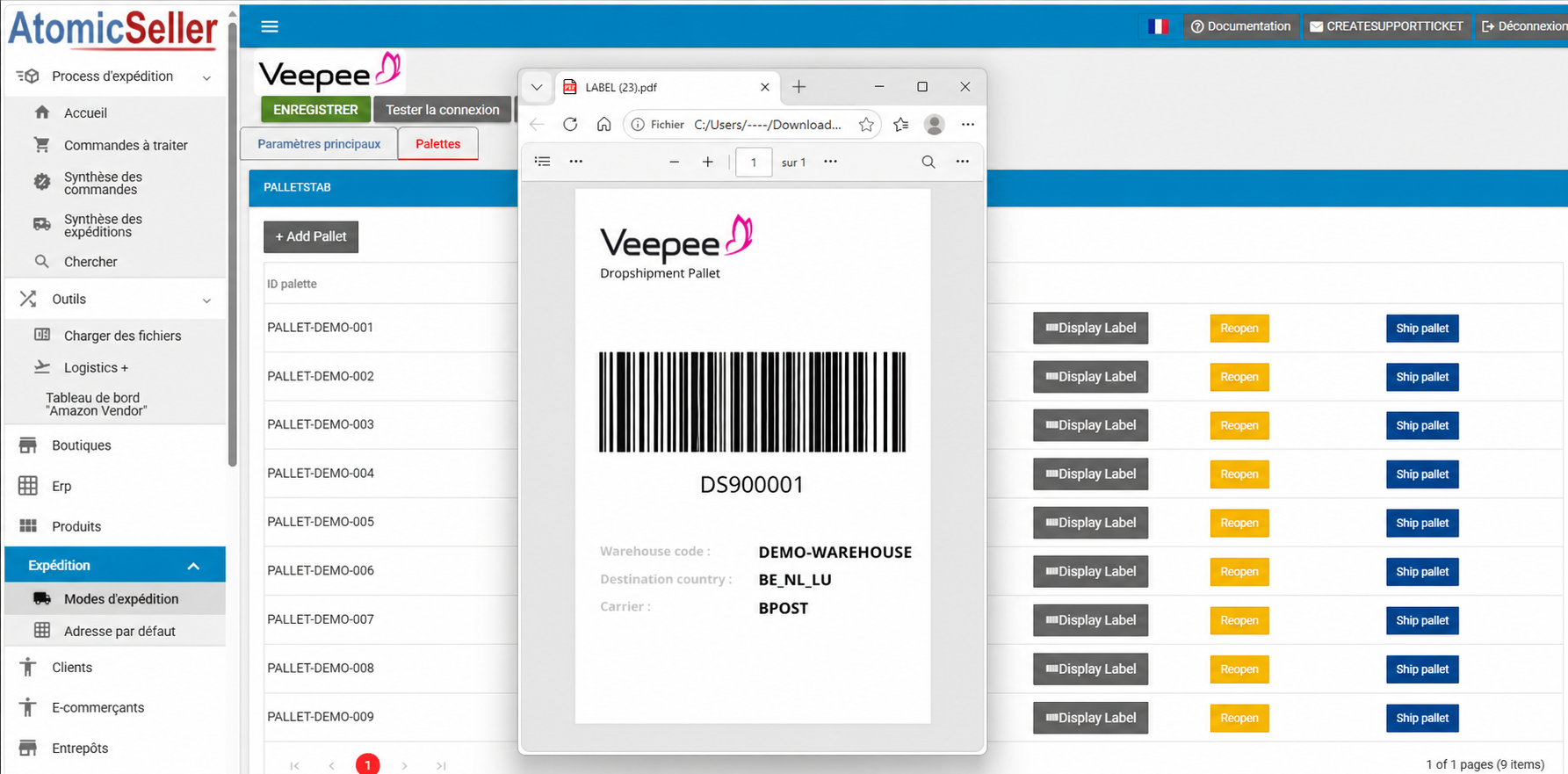
- Click Display Label.
- Print the label and physically attach it to the pallet.
- When the pallet is ready, click Ship pallet.
AtomicSeller first asks Veepee to close the pallet. The pallet is closed locally only after Veepee confirms the operation. The COMPLETED status means that the pallet has been transmitted and closed.
Destination countries #
A single pallet can currently contain parcels for the countries grouped on the label, for example BE_NL_LU. This rule may change according to Veepee requirements.
If a closed pallet needs to be changed, use Reopen to reopen it.