
Configure your Chronopost account in AtomicSeller: connection details, label settings and default sender.
1. Open the shipping service #
Open Shipping > Shipping services, then double-click the Chronopost service you want to configure. Have the account details supplied for your contract ready.
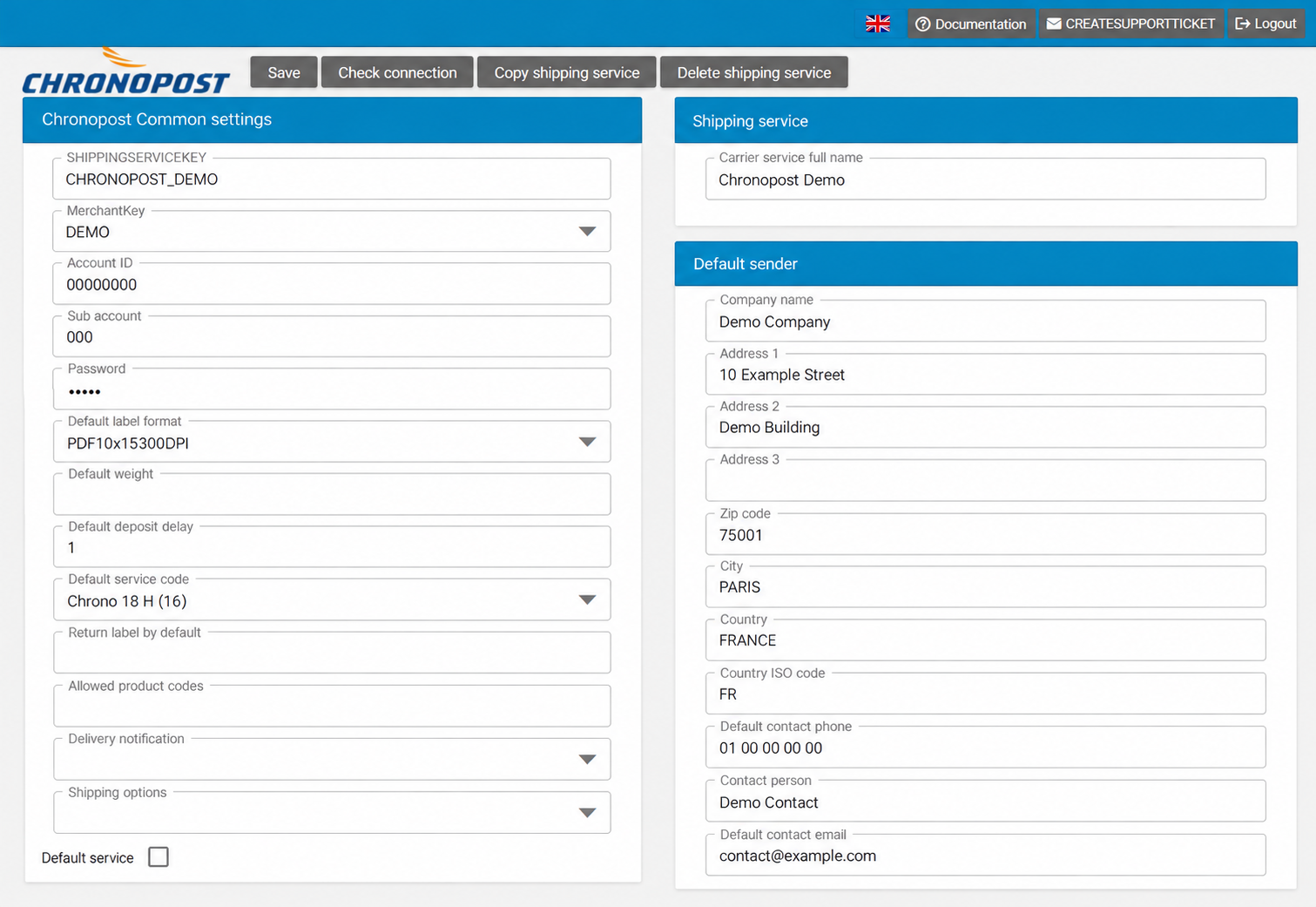
2. Identify the service #
| Field | What to enter |
|---|---|
| SHIPPINGSERVICEKEY | The code identifying this service in AtomicSeller, for example CHRONOPOST_DEMO. Keep an existing service code until its use in your integrations has been checked. |
| MerchantKey | Select the relevant merchant in your account. This list depends on your merchants; Demo names in the illustration are examples. |
| Carrier service full name | A name that helps you recognise the service, for example Chronopost Demo. |
3. Enter the account details #
| Field | What to enter |
|---|---|
| Account ID | Your Chronopost account number. |
| Sub account | The sub-account specified in your contract, if applicable. |
| Password | The connection password associated with your account. |
4. Choose the label and service settings #
| Field | What to enter |
|---|---|
| Default label format | Select a format compatible with your printer and carrier connection. The displayed choices are listed below. |
| Default service code | Select the service appropriate for your shipments and contract. A service appearing in the list is not necessarily enabled on your account. |
| Default weight | Default weight. Confirm the unit and when your configuration uses this value before entering it. |
| Default deposit delay | Default parcel handover delay. Use the value specified for your workflow; confirm the unit and calculation if needed. |
| Default service | Select this checkbox if the service should be designated as the default in your configuration. |
Label formats #
PDF10x15300DPI identifies a 10 × 15 cm PDF at 300 dpi, intended for dedicated self-adhesive label printers. PDFA4300dpi is the A4 PDF option. Other displayed formats (ZPL and DPL) are intended for compatible professional printing workflows. Confirm the format supported by your carrier connection before changing an existing setting.
Additional settings #
| Field | What to enter |
|---|---|
| Allowed product codes | Product codes allowed for this account. Use only codes agreed with Chronopost; confirm the required syntax before entering multiple codes. |
| Return label by default | Text field for return settings. Ask support which value your workflow requires; the Colissimo form’s options do not automatically apply here. |
| Delivery notification | Available choices: blank or Email. Select Email if your workflow requires email notifications. |
| Shipping options | Available choices: blank or IGNORERELAYNUMBERERRORS. Confirm the purpose of this technical option with support before enabling it. |
Available dropdown choices #
The following labels are reproduced exactly as displayed in the application, including French product names. A blank entry is shown as “(blank)”; its effect depends on the field.
Default label format #
- PDFA4300dpi
- PDF10x15300DPI
- ZPL10x15203dpi
- ZPL10x15300dpi
- ZPL10x10203dpi
- ZPL10x10300dpi
- DPL10x15300dpi
- DPL10x15203dpi
- DPL10x10203dpi
- DPL10x10300dpi
Default service code #
- (blank)
- Chrono Retrait Bureau (00)
- Chrono 13 H (01)
- Chrono 10 H (02)
- Chrono REP et Chrono REP DOM (Retour Express de Paiement) (09)
- Chrono 18 H (16)
- Chrono Express (17)
- Chrono Agenda (20)
- Chrono Premium (37)
- Chrono Classic (Pays CEE en voie routière) (44)
- Chrono Relais Europe (49)
- Chrono 13 H BAL (Instance Points Relais et Poste) (58)
- Chrono 8 H (75)
- Chrono 9 H (76)
- Chrono 12 H (77)
- Chrono Temp 13 H (78)
- Chrono Relais 9 H (80)
- Chrono Relais 13 H (86)
- Chrono 13 H Instance Poste (93)
- Chrono 13 H (Remise pas de porte possible) (1F)
- Chrono 18 H (Remise pas de porte possible) (1G)
- Chrono Temp 10 H (1K)
- Chrono Marchandises Dangereuses 13 H (1M)
- Chrono Marchandises Dangereuses 18 H (1N)
- Chrono Swap 13 H (1O)
- Chrono Swap 18 H (1P)
- Chrono 13 H Instance Agence (1S)
- Chrono 13 H Instance Relais (1T)
- Chrono 10 H sans instance Poste (1U)
- Chrono 18 H Instance Agence (1V)
- Chrono 13 H Livraison Collecte (1Y)
- Chrono 8 H Médical (2A)
- Chrono 9 H Médical (2B)
- Chrono Fresh Precise (Rendez vous) (2E)
- Chrono Freeze Precise (Rendez Vous) (2F)
- Chrono 18 H (Livraison en boîte aux lettres) (2L)
- Chrono 18 H (Livraison en boîte aux lettres, instance mixte) (2M)
- Chrono Precise (Rendez Vous) (2O)
- Chrono Fresh Same Day (2P)
- Chrono Freeze Same Day (2Q)
- Chrono Fresh 13H (2R)
- Chrono Freeze 13H (2S)
- Chrono Zengo 13 H (3J)
- Chrono Zengo Relais 13 H (3K)
- Chrono Fret Dom (3S)
- Chrono Retour Europe (3T)
- Chrono Fresh 10 H (3X)
- Chrono Freeze 10 H (3Y)
- Chrono 18 H (Instance relais) (3Z)
- Chrono Same Day (4I)
- Chrono Relais Dom (4P)
- Chrono Direct (4Q)
- Chrono Reverse 9 H (4R)
- Chrono Reverse 10 H (4S)
- Chrono Reverse 13 H (4T)
- Chrono Reverse 18 H (4U)
- Chrono Fresh 12 H (4V)
- Chrono Freeze 12 H (4W)
- Chrono Fresh Classic (4X)
- Chrono Shop 2 Shop France (5E)
- Chrono Shop 2 Shop Europe (5H)
- Chrono Médical 13 H 15 25 C Température Dirigée (5I)
- Chrono Médical 13 H 2 8 C Température Dirigée (5J)
- Chrono Médical 10 H (8A)
- Chrono Médical 13 H (8B)
- Chrono Médical 18 H (8C)
- Chrono Médical 10 H Thermosensible (8D)
- Chrono Médical 13 H Thermosensible (8E)
- Chrono Médical 18 H Thermosensible (8F)
- Chrono Médical Marchandises Dangereuses 13 H (8G)
- Chrono Médical Marchandises Dangereuses 18 H (8H)
- Chrono Médical Marchandises Dangereuses 13 H Thermosensible (8I)
- Chrono Médical Marchandises Dangereuses 18 H Thermosensible (8J)
- 2Shop Direct (5X)
- 2Shop Europe (6B)
- 2Shop Retour (5Y)
- 2Shop Retour Europe (6C)
Delivery notification #
- (blank)
Shipping options #
- (blank)
- IGNORERELAYNUMBERERRORS
5. Complete the default sender #
Enter the default sender under Default sender. These details are intended for use when no sender is provided in the order or through the API.
| Field | What to enter |
|---|---|
| Company name | Sender company name. |
| Address 1 | Street number and name. |
| Address 2 / Address 3 | Additional address details, if needed. |
| Default contact phone | Sender contact phone number. |
| Contact person | Sender contact name. |
| Default contact email | Sender contact email address. |
| Zip code / City | Postal code and city. |
| Country / Country ISO code | Country and two-letter code, for example FRANCE and FR. |
6. Save and check the connection #
Use Save to save the settings and Check connection to run the available connection check. If an error appears, review the account credentials and selected service, then contact AtomicSeller support with the exact error message if needed. Do not include passwords or secret keys.