
This procedure explains how to create a ticket from the application or contact support by email, providing useful diagnostic information without disclosing sensitive data.
There are several ways to contact the support :
- By email at support@atomicseller.com.
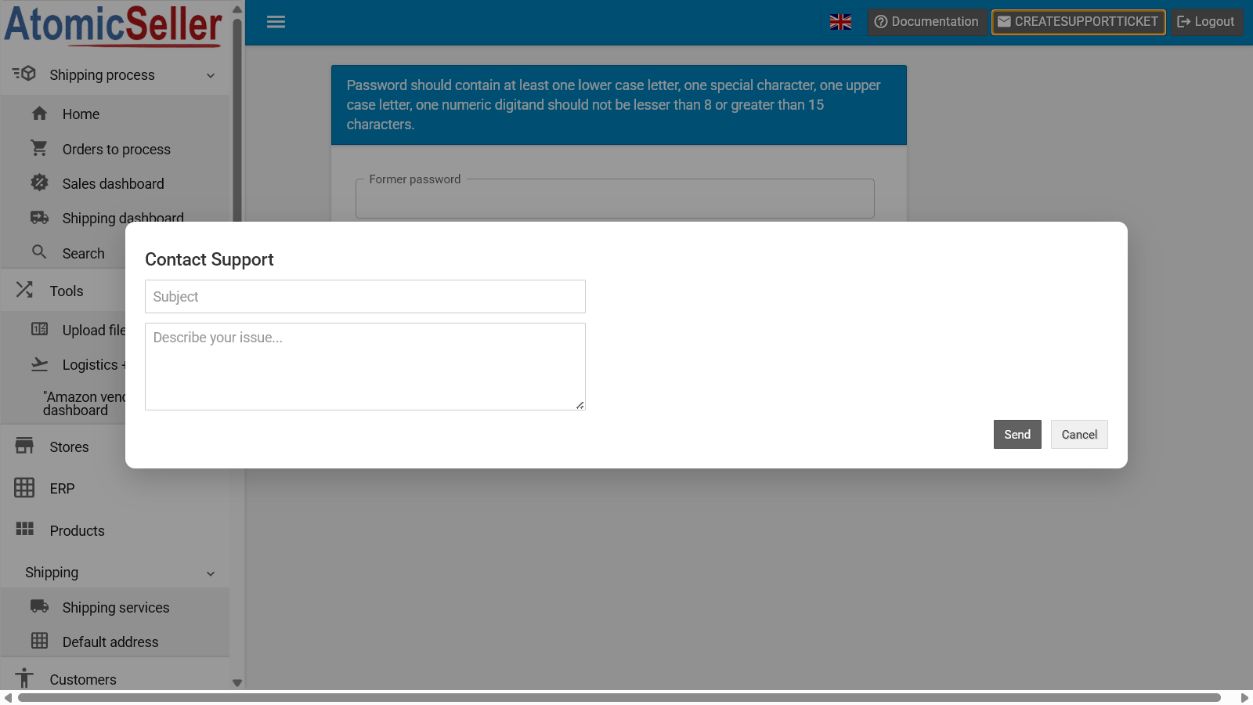
- Directly from the application by clicking the “Contact Support” button. A window will open, allowing you to describe the problem you are experiencing.
When you send your message, certain technical information is automatically transmitted to facilitate diagnosis and expedite problem resolution.
Prerequisites #
- You have reviewed the procedure for the action that failed.
- You have recorded the screen, approximate time, action performed, and exact error message.
- You have prepared an anonymized order or store reference when useful.
- You have removed all passwords, API tokens, secret keys, and unnecessary customer data.
Privacy. Never send a password, API token, or secret key. Limit personal data to what is strictly necessary and anonymize screenshots before attaching them.
Create a ticket from AtomicSeller #
- Open the relevant screen. Remain on the page where the issue occurs when the application is still usable.
- Select Create support ticket. The button may currently appear as CREATESUPPORTTICKET.
- Complete Subject. Summarize the issue with the object and action, for example: Label — error after Generate label.
- Describe the issue. In Describe your issue, include the expected result, actual result, time, steps already tested, and exact message.
- Review the data. Remove secrets and anonymize any customer information that is not essential.
- Select Send. Send once, then wait for confirmation or for the dialog to close.
Recommended ticket content #
- Relevant account or environment, without secret credentials.
- Screen and function used.
- Date, time, and time zone.
- Steps required to reproduce the issue.
- Expected result, actual result, and exact error message.
- Anonymized reference and sanitized screenshot only when essential.
Expected result. The request is sent with actionable context and without secrets or excessive personal data, allowing support to begin diagnosis.
Troubleshooting #
The button is missing. Refresh and try from another page, then use the support email address if required.
The dialog does not send. Copy the text, check the Internet connection, refresh the application, then email the request.
You receive no confirmation. Keep the subject, time, and content; avoid repeated submissions and email support with details of the attempt.
The attachment contains sensitive data. Do not send it; create an anonymized copy or ask support for an appropriate channel.