
Choose an editor and browse the other guides
The Easy B2C editor is designed for orders shipped to individual consumers. This guide covers the simple entry workflow: recipient, delivery address, items and release for preparation.
1. Open the right editor #
In My account → My profile, choose Easy B2C, then click Save. Open your order.
To create an order, open Shipping process → Orders to process and click Input an order. You can also open an existing order from the list.
2. Check the order information #
Check the order reference, originating store and status. The creation date identifies when the order was created. Enter or check the shipping deadline if applicable. The WMS timestamp relates to release for warehouse preparation; it is not confirmation of delivery to the customer.
3. Find or enter the customer #
The customer address book is available directly during order entry. In the customer section, the magnifier opens Existing customer. Use the filters under Company, Name, Zip code or City, then select the customer to copy their details into the order.
For a new recipient, enter the company, first and last names, contact details and delivery address directly. For a business delivery, include the person or department that should receive the shipment.
The order and the customer record are saved separately. Editing contact or address details in the editor changes the order information. Click Save to keep the order changes. To also add to or correct the customer address book, click the disk icon next to the magnifier. A one-off delivery address can therefore remain specific to the current order.
Check the full address, zip code, city and country. The country code is an ISO code, such as FR. Enter a pickup-point identifier when required by the selected shipping service.
4. Add items and check stock #
- In Products, click Pick products to open the catalog.
- Search using the SKU, barcode or product-name filters.
- Review Available stock and tick the products to add.
- Click Add selected products.
- Check and adjust the ordered quantities in the order lines, then finish editing the line before saving the order.
Available stock already accounts for reservations. The catalog shows this availability without a warehouse breakdown. A blank value is not a confirmed zero quantity. Check availability before releasing the order for preparation.
A newly added catalog reference starts with a quantity of 1: replace it with the actual ordered quantity. If the reference is already in the order, adjust its existing line rather than relying on another selection to increase the quantity.
Alternatively, use Add row and enter the SKU, product name and quantity, followed by any details needed for your workflow, such as weight, EAN or lot reference. To remove an item from this order, select its row and click Delete selected row.
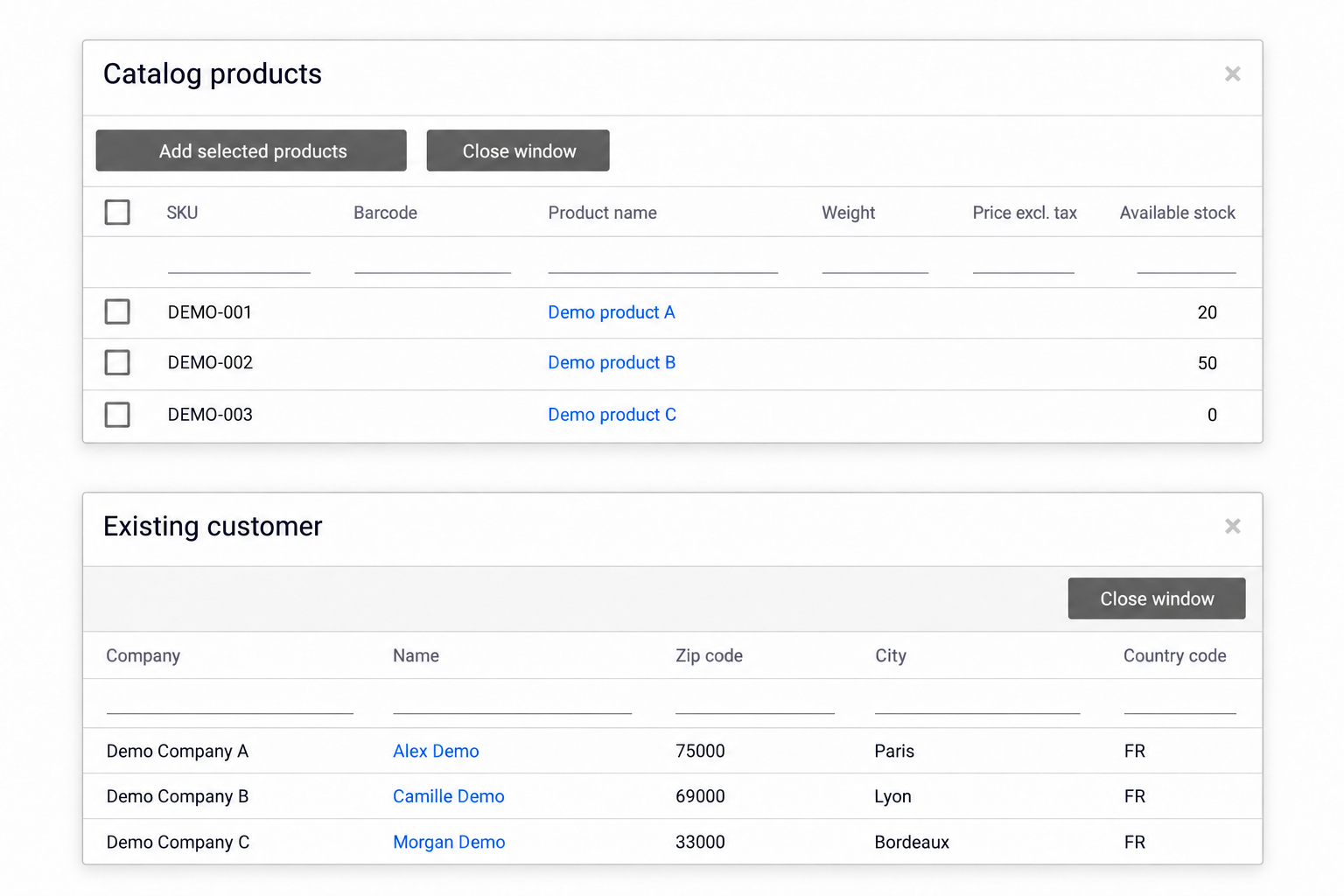
Illustration anonymized and adapted for this guide; Demo data is fictional.
5. Enter shipping details #
First choose the Shipping service (carrier account), then the Product code for the required service level. The available product codes depend on the selected shipping service.
| Information | What to enter or check |
|---|---|
| Total delivery value / Insurance value | Shipment and insurance values as required by the selected service. |
| Weight unit | A unit consistent with the entered weights, such as kg. |
| Incoterm | The delivery term applicable to your shipment, when needed. |
| Delivery instructions | Useful receiving information: opening hours, access, contact or special instructions. |
6. Attach and view documents #
In Documents, click Upload document to attach a file. Choose its type: Invoice, Delivery note, Return note or Flyer. Select the file, add a reference if useful, and click Upload.
The list shows shipment documents with their type, creation date, format and reference. Use the display icon to open a document.
7. Save and release for preparation #
- Check the recipient, address, product references, quantities and shipping details.
- Finish editing the current product row, then click Save.
- If your workflow uses a warehouse management system (WMS), then click Send for preparation to release the order for warehouse processing.
Save does not send the order for preparation. Save your changes before releasing the order. Copy order lets you start from a similar order; review the resulting order details before using it.
Parcel tracking shows information as it becomes available: reference, status, weight, tracking number and shipping date. Some fields remain empty until the corresponding information has been produced.